
-
Initial Installation
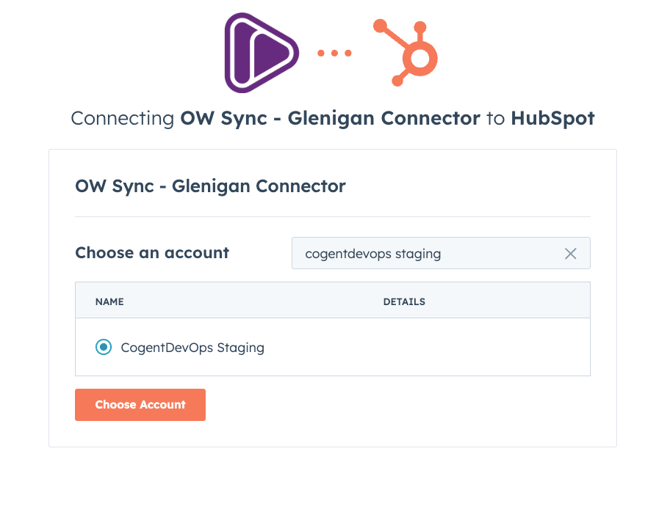
- Install OW Sync - Glenigan Connector from the official installation flow. Select your HubSpot account from the list. We recommend testing on a sandbox or test account before deploying to production.
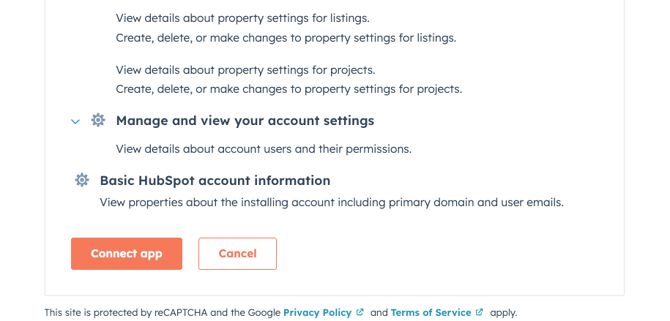
- Review the permissions required by the app — these include access to projects, listings, and account settings — then click Connect app to proceed.
- Install OW Sync - Glenigan Connector from the official installation flow. Select your HubSpot account from the list. We recommend testing on a sandbox or test account before deploying to production.
- Account Setup
- After connecting, you'll be guided through a setup wizard.
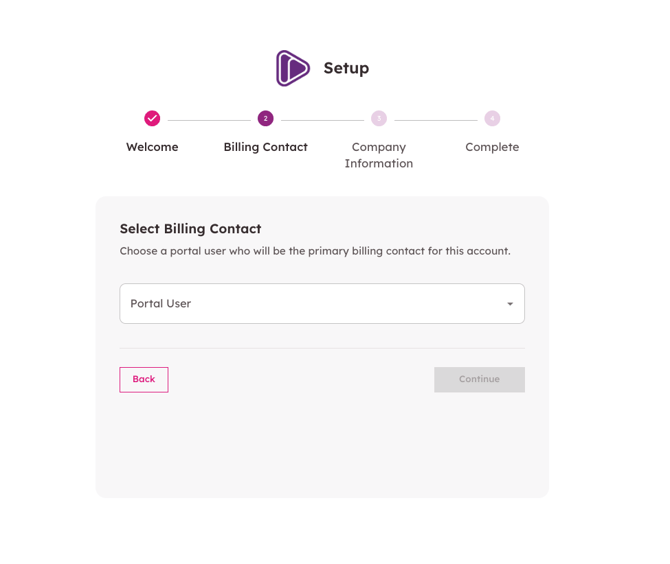
- Select Billing Contact: Choose a portal user who will be the primary billing contact for this account from the dropdown, then click Continue.
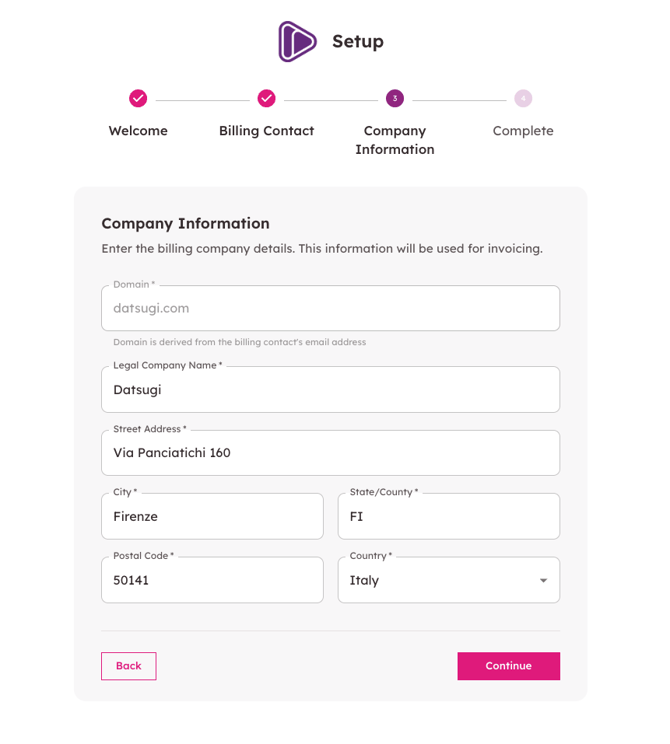
- Company Information: Enter your billing company details including domain, legal company name, street address, city, state/county, postal code, and country. This information will be used for invoicing. Click Continue to proceed.
- Select Billing Contact: Choose a portal user who will be the primary billing contact for this account from the dropdown, then click Continue.
- After connecting, you'll be guided through a setup wizard.
- Glenigan Onboarding
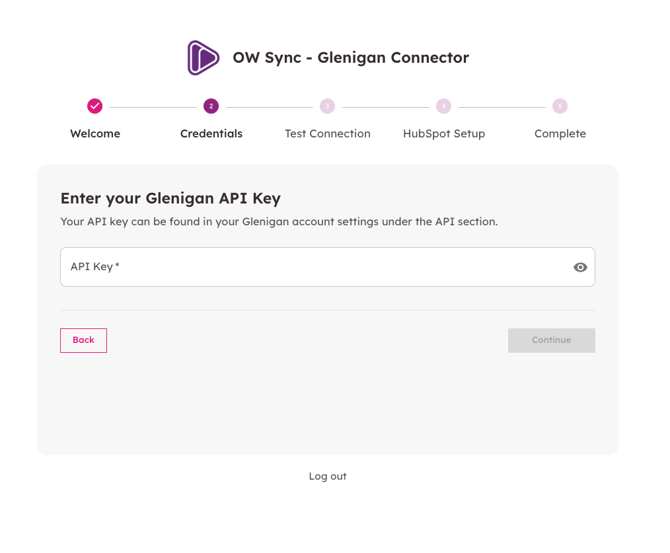
- Enter Your Glenigan API Key: Input your Glenigan API key. You can find this in your Glenigan account settings under the API section. Your API key is stored securely and encrypted. Click Continue once entered.
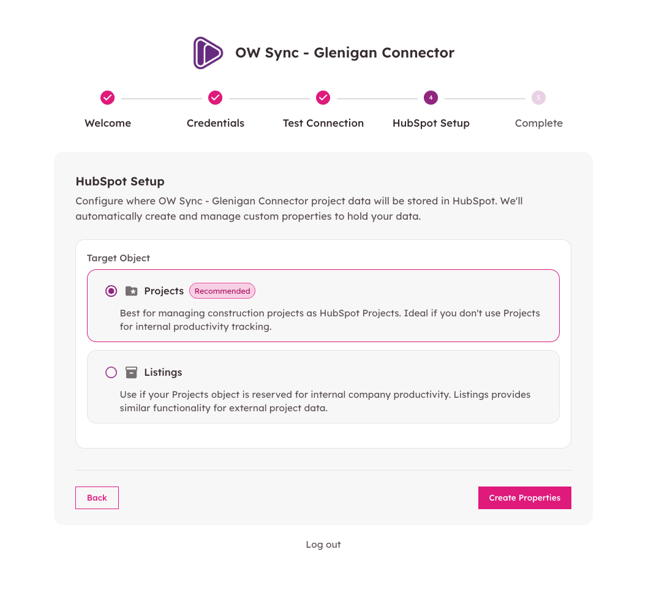
- HubSpot Setup — Choose Target Object: Select where OW Sync should store Glenigan project data in HubSpot. You have two options:
- Projects (Recommended) — Best for managing construction projects as HubSpot Projects. Select this if you don't use Projects for internal company productivity tracking.
- Listings — Use if your Projects object is reserved for internal company productivity. Listings provides similar functionality for external project data.
- Click Create Properties to proceed. OW Sync will automatically create and manage custom properties in HubSpot to hold your Glenigan data
- Enter Your Glenigan API Key: Input your Glenigan API key. You can find this in your Glenigan account settings under the API section. Your API key is stored securely and encrypted. Click Continue once entered.
- Install the Chrome Extension
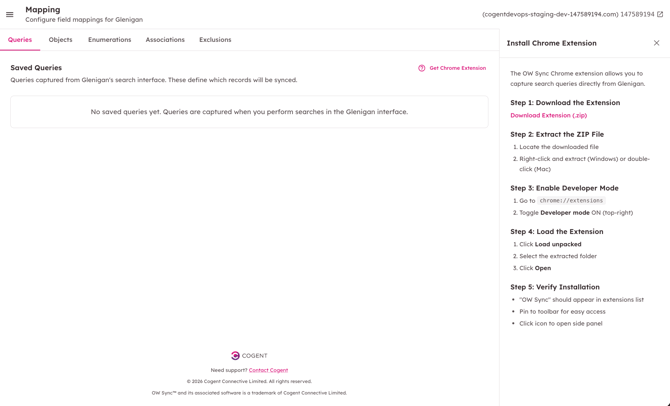
- After onboarding, you'll land on the Queries tab in the Mapping page. Before you can sync data, you need to install the OW Sync Chrome Extension. This extension captures search queries directly from the Glenigan interface.
- The installation instructions are displayed on the right side of the Queries tab, upon clicking on "Get Chrome Extension".
- Download and Extract
- Download the extension ZIP file provided by the Cogent Connective team.
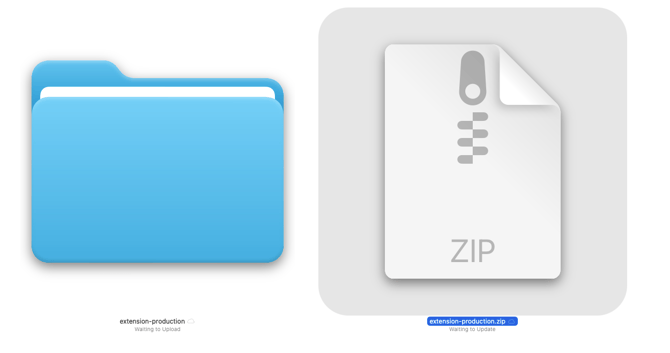
- Locate the downloaded file and extract (unzip) it. You should see an extension-production folder alongside the original ZIP.
- Enable Developer Mode
- Open Chrome and navigate to chrome://extensions in the search bard.
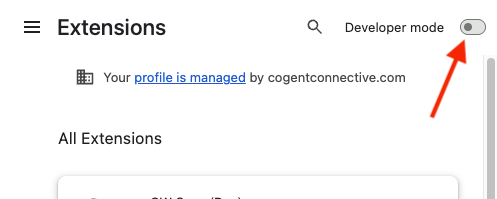
- Toggle Developer mode ON (top-right corner).
- Load the Extension
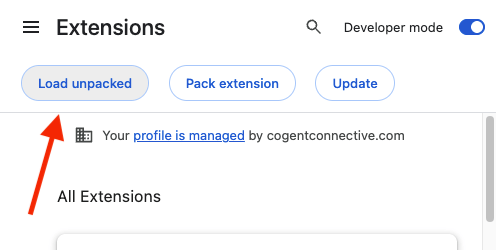
- Click Load unpacked (top-left).
- Select the extracted extension-production folder.
- Click Open.
- Verify Installation
- OW Sync should now appear in your Chrome extensions list. Click the extensions puzzle icon in the toolbar to confirm it's there. You can pin it for easy access.
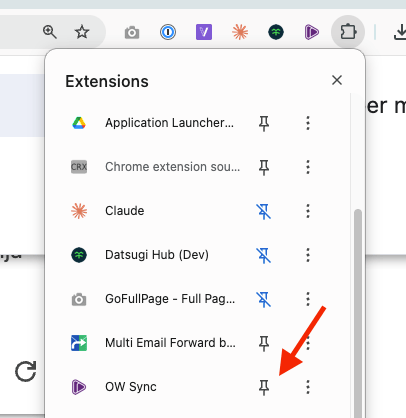
- OW Sync should now appear in your Chrome extensions list. Click the extensions puzzle icon in the toolbar to confirm it's there. You can pin it for easy access.
- Download and Extract
- Capture Glenigan Searches
- The OW Sync Chrome Extension allows you to capture searches you perform on the Glenigan website and sync the results into HubSpot.
- Open the Side Panel
- Navigate to https://my.glenigan.com and log in.
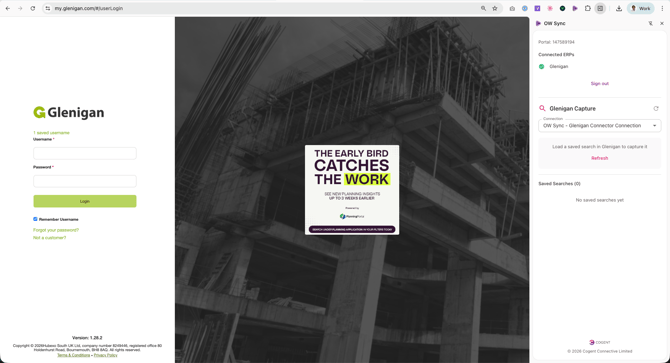
- Click the OW Sync extension icon to open the side panel.
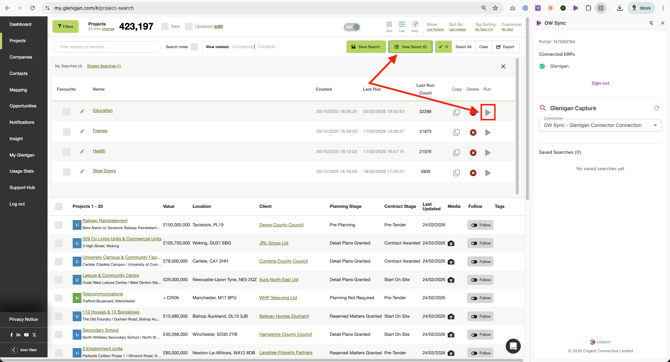
- You should see your connected HubSpot portal and Glenigan connection status (green checkmark). If not, log in to the extension with the same portal you used for OW Sync.
- Perform and Capture a Search
- Navigate to the Projects section in Glenigan and perform a search using your desired filters.
- Once results load, click the capture button (the OW Sync icon next to "Save Search") to capture the current search query.
- Save the Captured Query
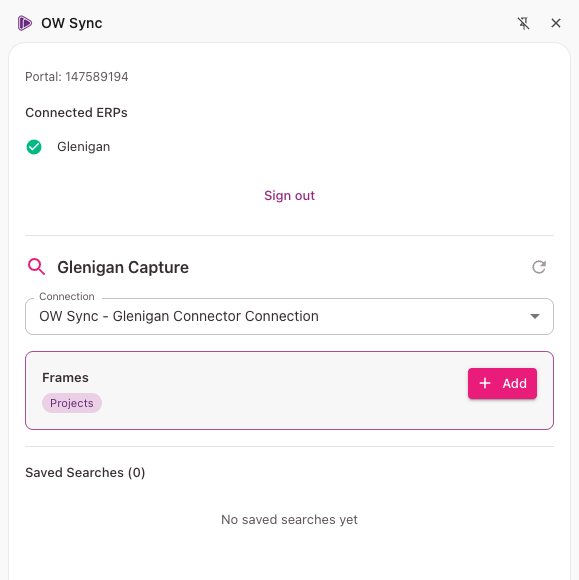
- The captured search will appear in the side panel under Glenigan Capture. You'll see the search name and its object type (e.g. Projects).
- Click + Add to save the captured query.
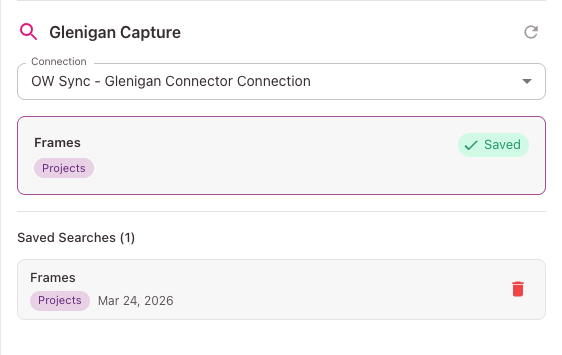
- Once saved, the query appears under Saved Searches with a confirmation checkmark and the date it was captured. You can delete saved searches using the trash icon.
- Open the Side Panel
- The OW Sync Chrome Extension allows you to capture searches you perform on the Glenigan website and sync the results into HubSpot.
- Configure Field Mappings
- Return to the OW Sync Mapping page in HubSpot. Your captured queries will now appear under the Queries tab.
- Review Saved Queries
- The Queries tab shows all captured searches with their name, object type, record count, sync schedule, and a preview of the data that will be synced.
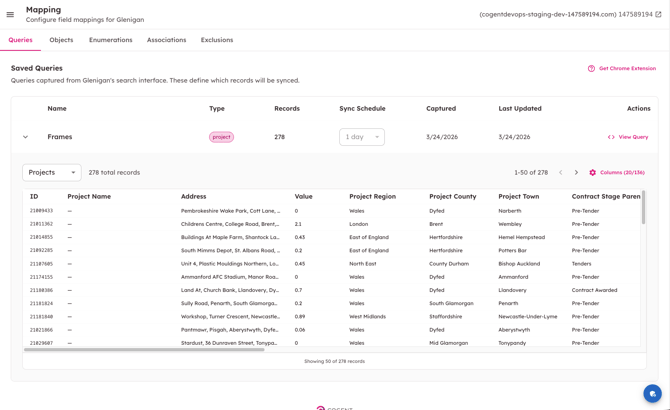
- The Queries tab shows all captured searches with their name, object type, record count, sync schedule, and a preview of the data that will be synced.
- Map Fields to HubSpot Properties
- Click the Objects tab to configure how Glenigan fields map to HubSpot properties. Expand the Projects row and select the query you want to sync (e.g. "Frames") from the Select queries... dropdown.
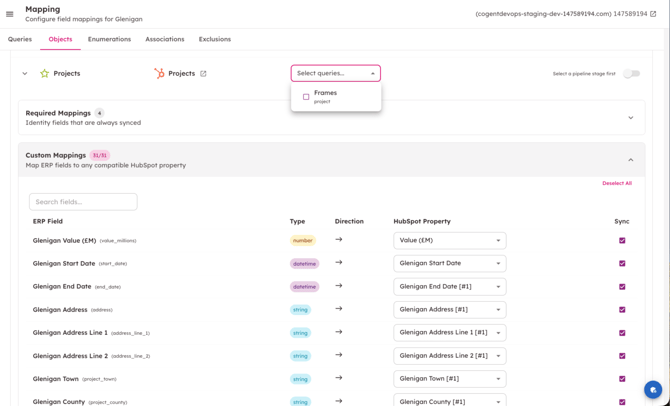
- Click the Objects tab to configure how Glenigan fields map to HubSpot properties. Expand the Projects row and select the query you want to sync (e.g. "Frames") from the Select queries... dropdown.
- Configure Pipeline Stage
- For the Pipeline Stage mapping, select the appropriate pipeline and stage. Click Refresh Pipelines if your pipelines don't appear, then choose the correct pipeline and stage from the dropdowns.
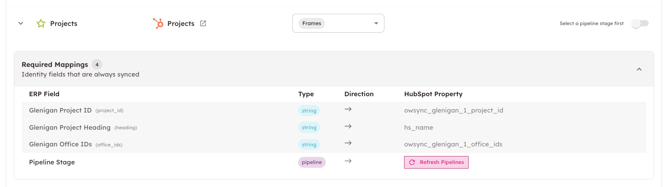
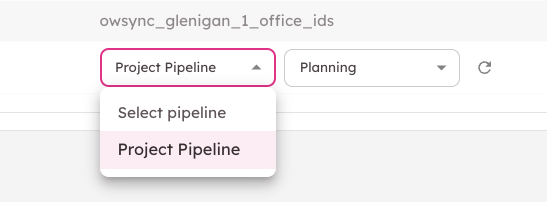
- For the Pipeline Stage mapping, select the appropriate pipeline and stage. Click Refresh Pipelines if your pipelines don't appear, then choose the correct pipeline and stage from the dropdowns.
- Custom Mappings
- Under Custom Mappings, all remaining Glenigan fields are displayed. Each field can be mapped to a compatible HubSpot property using the dropdown. Fields are pre-mapped to auto-created HubSpot properties by default, but you can change the target property or disable individual field syncs using the checkboxes.
- Review Saved Queries
- Return to the OW Sync Mapping page in HubSpot. Your captured queries will now appear under the Queries tab.
- Enable Sync
- Once your queries are selected and field mappings are configured, enable the sync by clicking the toggle next to the Projects row in the Objects tab.
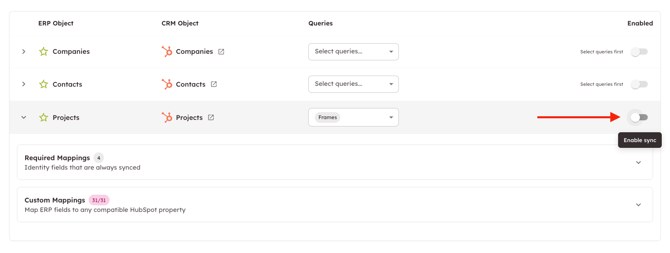
- You can also configure syncs for Companies and Contacts in the same way — select queries and enable the toggle for each object type you want to sync.
- Once your queries are selected and field mappings are configured, enable the sync by clicking the toggle next to the Projects row in the Objects tab.
- Review Sync History
- Navigate to Sync Logs in the left sidebar to view synchronization history.

- The first sync will begin shortly after enabling. Subsequent syncs run automatically on a recurring schedule.
- Navigate to Sync Logs in the left sidebar to view synchronization history.
- Verify in HubSpot
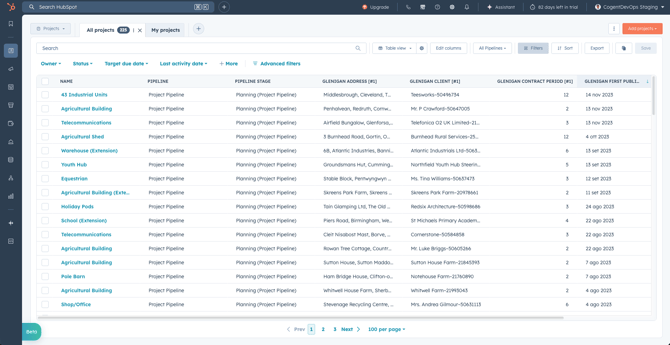
- Once the sync completes, navigate to your HubSpot Projects (or Listings, depending on your setup) to verify the data.
- You should see Glenigan project records with all mapped fields populated, including address, client, contract period, and other project details.
This guide will be updated with new functionality, object types, and synchronization options as they become available. Visit the [OW Sync website](https://www.owsync.com) for the latest features, or contact the Cogent Connective team with any questions not covered here.