
1. Initial Installation
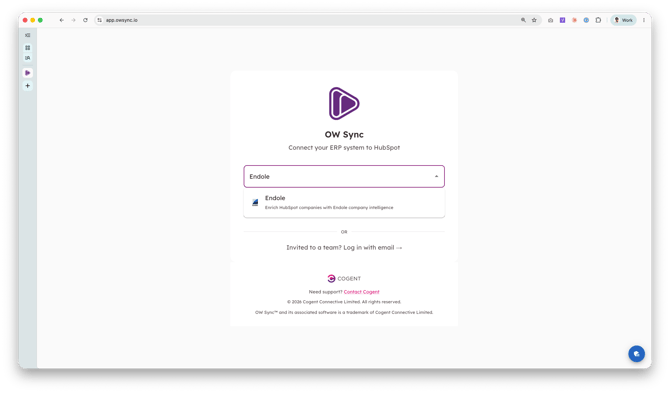
- Install OW Sync - Endole Connector from the official installation flow. On the OW Sync landing page, open the "Search for your ERP..." dropdown and select Endole, then click Log In with HubSpot. (If a teammate has already set up the account and invited you, use Invited to a team? Log in with email instead.)
- Select your HubSpot account from the list. We recommend testing on a sandbox or test account before deploying to production.
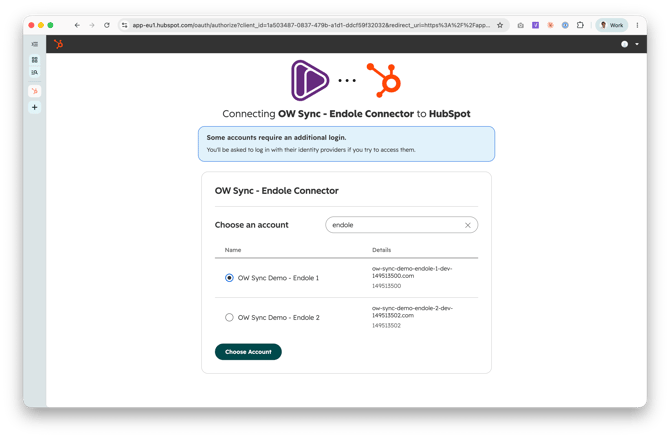
- Review the permissions required by the app — access to your companies, contacts, their property schemas, and workflow automation — then click Connect app to proceed.
2. Account Setup
After connecting, you'll be guided through a four-step account setup wizard (Welcome → Billing Contact → Company Information → Complete). This runs once per OW Sync account.
- Welcome: A short introduction to the setup process. Click Continue.
- Select Billing Contact: Choose the portal user who will be the primary billing contact. Click Continue.
- Company Information: Enter your billing company details. Click Continue to move on to connecting Endole.
3. Connect Endole
The Endole onboarding wizard has four steps: Welcome → Credentials → Test Connection → Complete. There is no HubSpot property setup — Endole is delivered entirely through HubSpot workflow actions, so nothing is synced or mapped up front.
Endole authenticates with a 64-character API key generated self-serve in the Endole dashboard at app.endole.co.uk/api. Endole API credits are bought separately from your Endole subscription; an account with no credits cannot be connected. A sandbox_ key returns mock data at no credit cost. Keys are stored encrypted.
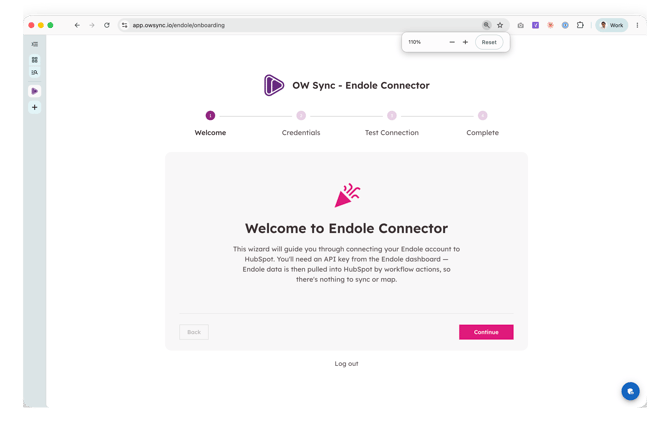
- Welcome: Explains what you'll need. Click Continue.
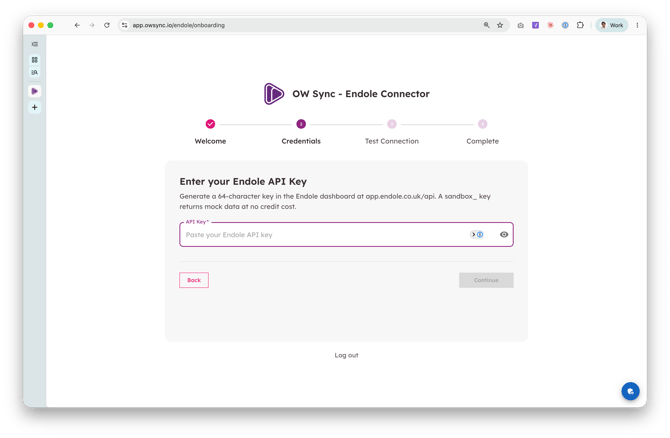
- Enter your Endole API Key: Paste the key into the API Key field. Continue stays disabled until a 64-character key is entered.
- Test Connection: OW Sync validates the key against Endole — the check spends no Endole credits — and creates your connection.
- Complete: Click Go to Dashboard to enter the app.
4. Using the App
The Endole connector has three pages in the left sidebar:
- Logs — the history of every Endole workflow action run, with errors you can filter by action.
- Billing — your OW Sync plan and invoices (owners only).
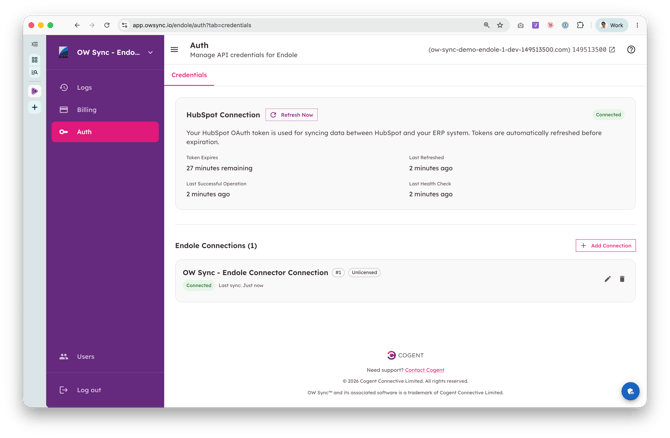
- Auth — your HubSpot connection status and your Endole connection. Expand the connection card to test or replace the API key, for example when switching from a sandbox key to a live one.
5. Workflow Actions
Add Endole actions to any HubSpot company workflow. Each action takes two inputs: the Endole Connection to use, and the Companies House Number — normally a company property. Leading zeros dropped by a number property are restored automatically. Actions return values you can copy onto any property in later workflow steps. Every action also returns Data Found, which is false when Endole holds no data for that company; those runs cost no credits.
| Action | Endole credits | Returns |
|---|---|---|
| Find Company in Endole | 1 (2 at most) | The Companies House number, registered name, status and address of the best match, with a match confidence (High, Medium, Low, None) |
| Enrich Company Profile | 1 | Registered name, type, size, incorporation date, SIC codes, registered office address, and confirmation statement and accounts deadlines |
| Sync Company Officers | 1 per page of 20 (usually 1) | Active officer counts and a "name (role)" list, plus each active officer created as a contact linked to the company (on by default) |
| Look Up VAT Number | 5 | VAT number, registered name and address, and how many other companies Endole also matched |
| Run Credit Check | 30 | Credit score, status, recommended credit limit and score date, plus last year's for comparison |
| Check County Court Judgments | 20 (free when there are none) | CCJ count, unsatisfied count, total and unsatisfied amounts, latest judgment date, amount and status, CCJs in the last 12 months, and a Has Unsatisfied CCJ flag — a summary for the company, not individual judgment records |
| Sync Company Shareholders | 20 (+1 per corporate holder when creating records) | Holder counts, largest shareholder and their ownership %, a list of all holders, share capital; optionally creates individual holders as contacts and corporate holders as companies, linked to the company |
| Enrich Company Financials | 10 | 20 headline figures from the latest filed accounts (turnover, profit, employees, assets, liabilities, cash and more), plus last year's |
- Find Company in Endole is for companies with no Companies House number yet. Give it the company name, plus the postcode and town when you have them, which raise the match confidence. Below the Minimum Match Confidence (Medium by default) it returns Matched = false and leaves the company fields empty, with the best candidate still shown for review. Copy the Companies House Number output onto a company property, then use it in the other actions.
- Sync Company Officers and Sync Company Shareholders only create records from company-based workflows. A contact already linked to the company with the same first and last name is left untouched, so re-running is safe. Endole has no officer emails or phone numbers, so new contacts have a name and job title (their role, or "Shareholder") only.
- Find Company in Endole, Enrich Company Profile, Look Up VAT Number and Sync Company Officers are included in the Standard plan; Run Credit Check, Enrich Company Financials, Check County Court Judgments and Sync Company Shareholders require the Advanced plan.
- Endole matches VAT registrations by company name. When Additional Match Count is above 0, check the result before relying on it.
- Financial figures are in GBP. Liabilities and creditors are negative numbers, as Endole reports them.
- When Endole's rate limit (100 requests per 10 minutes) is reached, HubSpot retries the action automatically.
This guide will be updated as further Endole workflow actions become available.
Visit the OW Sync website for the latest features, or contact the Cogent Connective team with any questions not covered here.