
1. Initial Installation
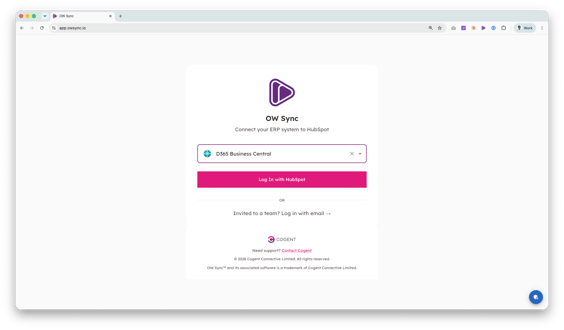
- Install OW Sync - D365 Business Central Connector from the official installation flow. On the OW Sync landing page, open the "Search for your ERP..." dropdown and select D365 Business Central ("Two-way sync between D365 Business Central & HubSpot"), then click Log In with HubSpot.
- Select your HubSpot account from the list. We recommend testing on a sandbox or test account before deploying to production.
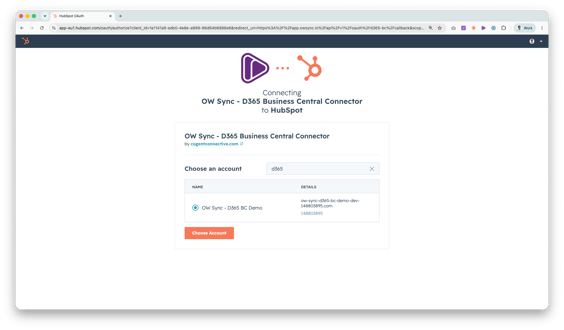
- Review the permissions required by the app — these include access to your companies, contacts, and their property schemas — then click Connect app to proceed.
2. Account Setup
After connecting, you'll be guided through a setup wizard.
- Select Billing Contact: Choose a portal user who will be the primary billing contact for this account from the dropdown, then click Continue.
- Company Information: Enter your billing company details including domain, legal company name, street address, city, state/county, postal code, and country. This information will be used for invoicing. Click Continue to proceed.
3. Connect D365 Business Central
Unlike connectors that require an API key, D365 Business Central authenticates through OAuth — there's no key to copy or paste. Your access is granted securely by signing in to D365 Business Central directly, and tokens are stored encrypted and refreshed automatically.
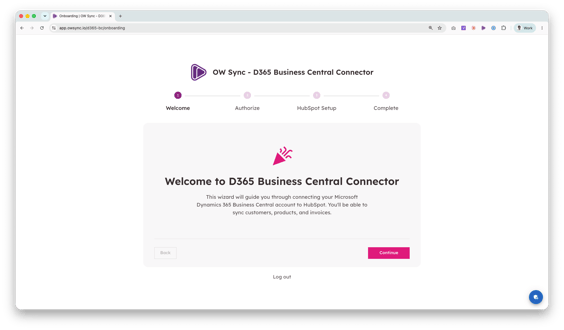
- Welcome to D365 Business Central Connector: The onboarding wizard explains that you'll be redirected to Microsoft to authorise access. Click Continue.
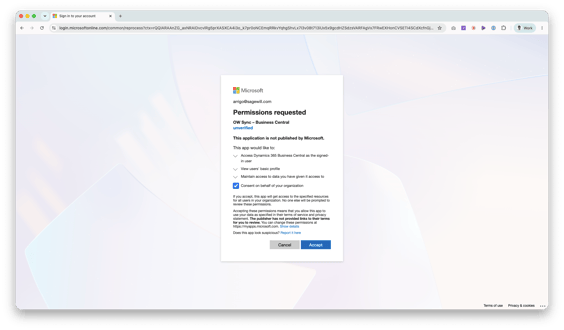
- Connect with Microsoft: D365 Business Central uses OAuth 2.0 authentication. The screen notes that you'll be redirected to D365 Business Central to sign in. Click Continue to authorise OW Sync to access your account.
- Authorise on D365 Business Central: You'll be redirected to D365 Business Central's sign-in page. Log in with your D365 Business Central credentials and approve access for OW Sync. Once authorised, you'll be returned to onboarding automatically.
4. HubSpot Setup — Create Properties
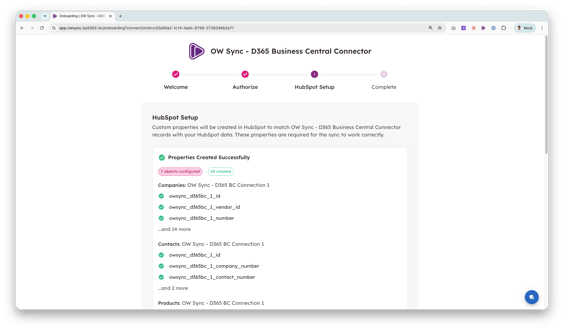
- Click Create Properties to proceed. OW Sync will create and manage the custom properties for your invoices, credit notes, and chosen contact object
5. Finish Onboarding
- Once properties are created, you'll see the All set! screen confirming your D365 Business Central connector is configured and ready to use. Click Go to Dashboard to enter the app.
6. Review Your Sync Configuration
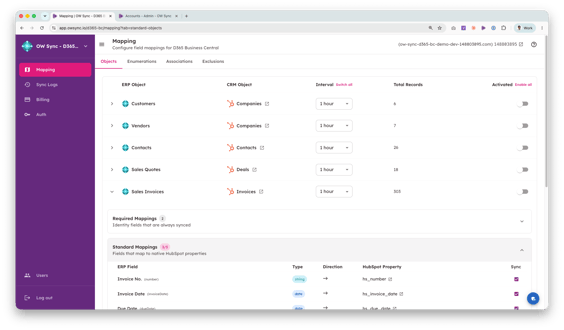
- After onboarding, you'll land in the OW Sync app. The Mapping page shows your pre-configured sync pairs. For D365 Business Central these are set up for you and run automatically.
- Each pair syncs from D365 Business Central into HubSpot on a recurring hourly schedule.
7. Review Sync History
- Navigate to Sync Logs in the left sidebar to view synchronization history.
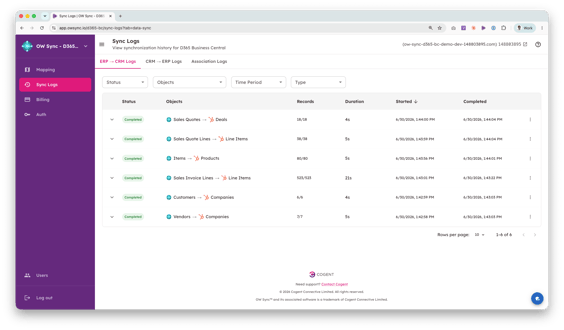
- The first sync will begin shortly after onboarding completes. Subsequent syncs run automatically on a recurring schedule.
8. Verify in HubSpot
- Once the sync completes, navigate to your HubSpot Companies, Deals, Invoices, Products and other objects to verify the data.
- You should see D365 Business Central records with all mapped properties populated—marked with a "D365 BC" prefix for easy retrieval).
This guide will be updated with new functionality, object types, and synchronization options as they become available. Visit the OW Sync website for the latest features, or contact the Cogent team with any questions not covered here.